Claude at a glance
| Topic | How it works |
|---|---|
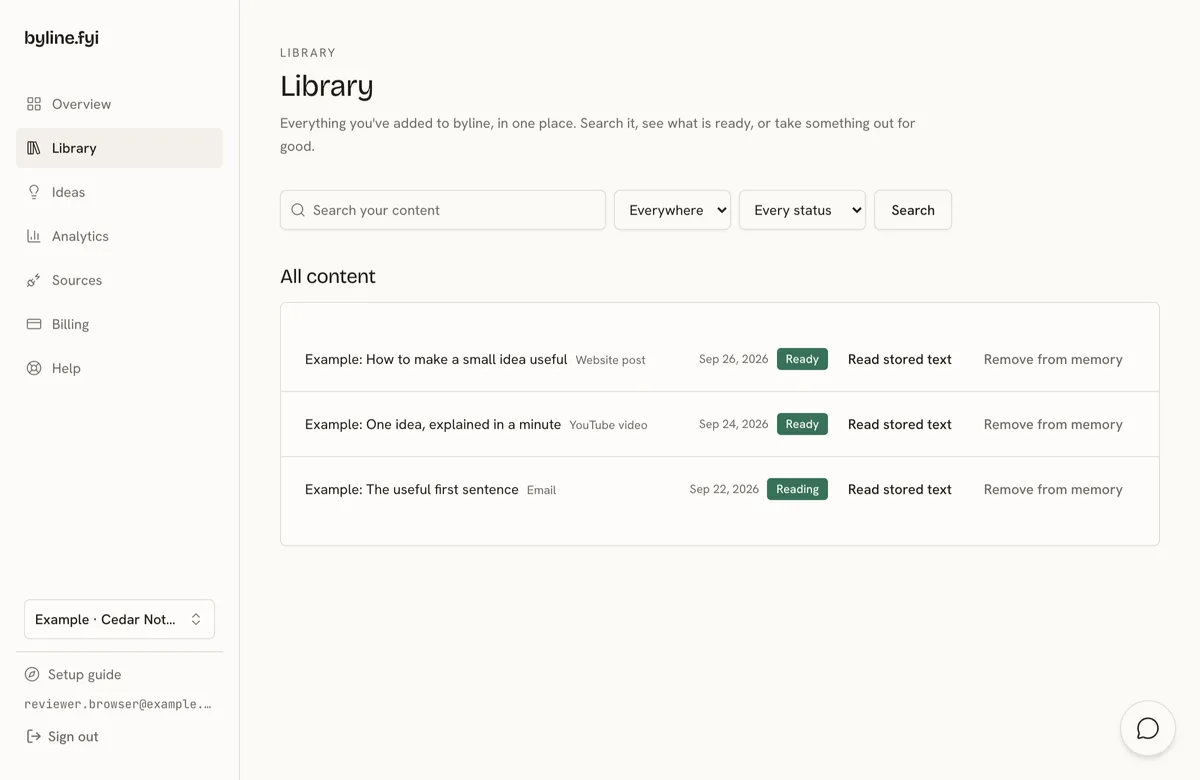
| Find a passage | Ask Claude to search byline for a topic you have covered and show the original sources. |
| Start a draft | Ask Claude to read your byline voice profile and use a passage you picked as a writing sample. |
| Switch clients | Ask Claude to list your byline workspaces and pick the client before searching. |
Setup
Connect Claude
- 1Open Sources in your byline dashboard and choose Connect to Claude. This opens the connector form in Claude with the byline details already filled in.
- 2If Claude asks you to sign in to Claude first, do that and return to the filled-in form. Confirm the connector, then sign in with the byline account that owns the work you want to search.
- 3Ask Claude to list your byline workspaces. Choose a workspace and ask for a post you remember by topic, publication or a distinctive phrase.
FAQ
Which Claude plans can connect?
Custom connectors work on every Claude plan. Free accounts can add one custom connector. On Team, an Owner or Primary Owner sets it up. Enterprise has separate permissions.
How do I check where a draft came from?
Ask Claude to search byline for examples and show the sources. Open the original work and check the wording before using it in a draft. For example, ask Claude to find the newsletter where you introduced a service and quote the sentence that explains who it serves. You can then ask for a new introduction that uses that passage and your byline voice profile.